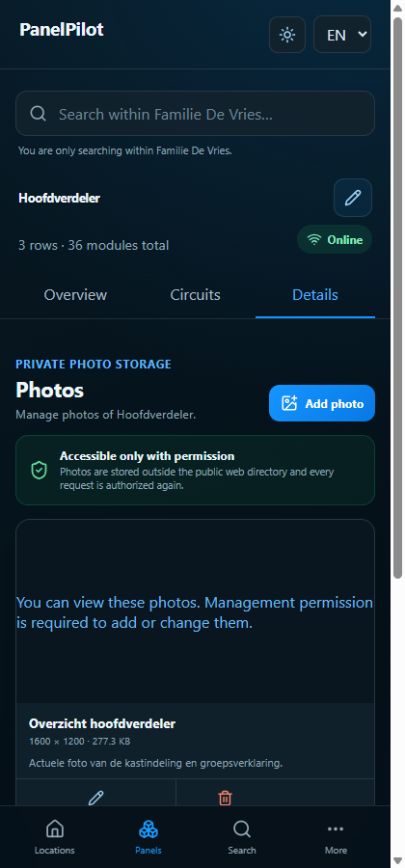
Photos, documents and recognition
Add, view and remove panel photos
Photos belong to the selected panel and can only be accessed by authorised users.
Watch the video
Add a panel photo
Transcript
- Open the panel and its photos under Details. Use the camera or choose a file from the gallery.
- Choose a clear JPEG or PNG photo no larger than 10 MB. Fill in the available category, title and description.
- Save and check upload status. Wait for confirmation before expecting the photo to be available on another device.
- Open a photo to enlarge it. Use pinch, double tap or the zoom controls; reset the view to see the whole image.
Step by step
Open the panel and its photos under Details. Use the camera or choose a file from the gallery.
Choose a clear JPEG or PNG photo no larger than 10 MB. Fill in the available category, title and description.
Save and check upload status. Wait for confirmation before expecting the photo to be available on another device.
Open a photo to enlarge it. Use pinch, double tap or the zoom controls; reset the view to see the whole image.
Use Edit for text details or Remove if permitted. For loading errors, check your connection and choose Retry.
Good to know
- Camera and file permissions vary by device. Use file selection when the camera is unavailable.