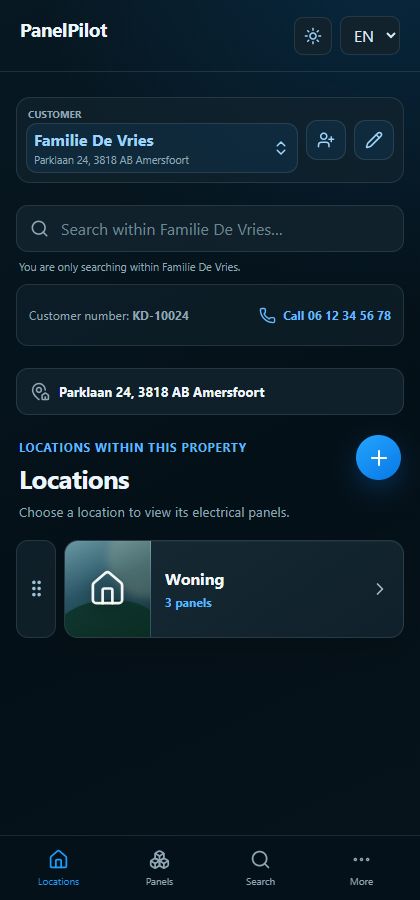
Customers and locations
Manage locations and the installation address
A location groups panels, for example in a house, garage or outbuilding. The installation address identifies the related property.
Watch the video
Add a location
Transcript
- Select the correct customer and open Locations in that record.
- Choose Add, enter a recognisable location name and save. Open the new location to add a panel.
Step by step
Select the correct customer and open Locations in that record.
Choose Add, enter a recognisable location name and save. Open the new location to add a panel.
Use the edit action on an existing location to change its name. Its panels remain associated with that location.
Open the available address action in the selected customer record. Check the installation address before saving.
Use the drag handle when shown to reorder the list. Check the saved order.
To archive a location, open its edit action and read the confirmation. Archive only when it should leave the active list.
Good to know
- A missing Add or Edit button usually means insufficient access or missing current data.
- When making changes, check that the intended customer record is still selected.