Panels and layouts
Add and open electrical panels
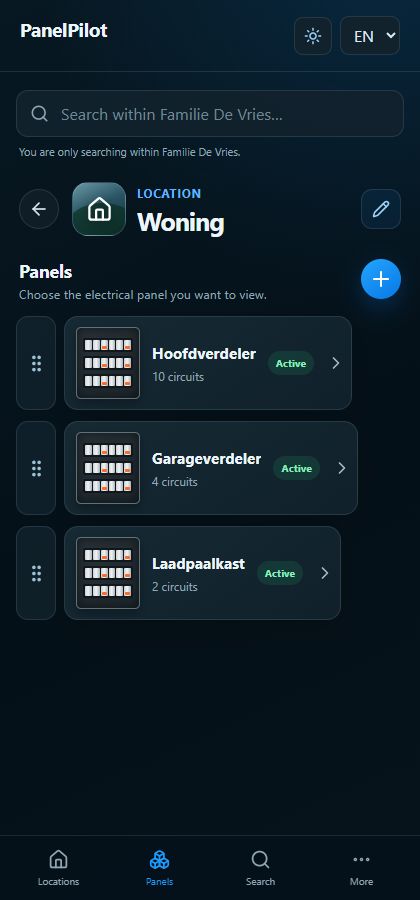
Each location can contain several panels. Use recognisable names such as Main panel or Garage panel.
Watch the video
Add an electrical panel
Transcript
- Open the correct location and choose Add panel.
- Enter the requested details and save. A new panel starts with one row of twelve modules.
- Open the panel card. The overview shows components, Circuits shows the associated circuits, and Details contains panel photos.
Step by step
Open the correct location and choose Add panel.
Enter the requested details and save. A new panel starts with one row of twelve modules.
Open the panel card. The overview shows components, Circuits shows the associated circuits, and Details contains panel photos.
Use the pencil beside the panel name to edit the panel details. The pencil inside the layout edits the components instead.
Where shown, use the drag handle in the panel list to change its order. To archive, use the panel edit action and confirm.
Good to know
- The circuit count comes from circuit-forming components; it is not entered separately.
- Check the location and panel name before changing a photo, component or circuit.