Navigation and preferences
Navigation, language and appearance
Screens and actions adapt to your organisation role and selected customer.
Watch the video
Sign in and find your way
Transcript
- Choose Sign in and enter your email and password. Complete email verification or additional verification if requested.
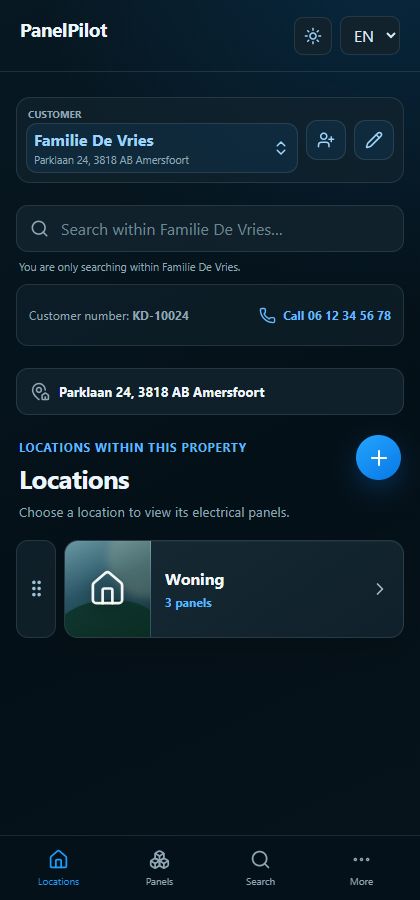
- Use Locations to open a record and Panels to reach the panel lists. Inside a panel, use the overview, Circuits and the photos under Details.
- Use the language selector in the app header to choose Nederlands, English, Deutsch, Français or Español. Buttons and messages change language.
- Use the sun or moon button in the header to switch between light and dark appearance.
- Open More for Sign out, User and account actions. Organisation administrators can find Employees there.
Step by step
Use Locations to open a record and Panels to reach the panel lists. Inside a panel, use the overview, Circuits and the photos under Details.
Use the language selector in the app header to choose Nederlands, English, Deutsch, Français or Español. Buttons and messages change language.
Use the sun or moon button in the header to switch between light and dark appearance.
Open More for Sign out, User and account actions. Organisation administrators can find Employees there.
Use Back to return to the previous view. On Android, Back closes an open dialog before leaving the current screen.
Good to know
- Names, notes and customer information you enter are not translated.
- Admin appears only when enabled and permitted in your current context.