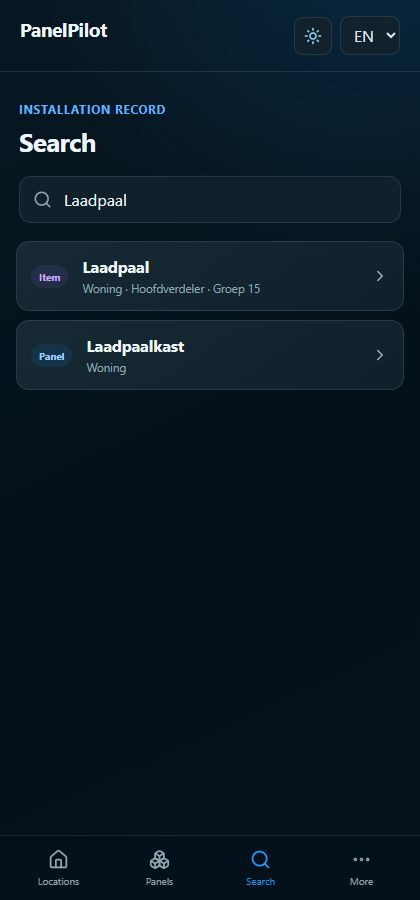
Searching in the app
Find a panel, circuit or device
The app searches the active record. The search on this website searches the guide instead.
Watch the video
Check your records
Transcript
- Open your own home record. The app searches the information you can access.
- Enter a name such as charging station or kitchen, or a circuit number. Text search starts at two characters; a single digit works for a circuit number.
- Check the result path: location, panel and, where relevant, circuit. Select the intended result.
- PanelPilot opens the matching context and highlights the circuit or position where applicable. Clear the query to restore the normal list.
- Add clear names, connected devices and useful photos. After saving, check that changes have synchronised.
Step by step
Open your own home record. The app searches the information you can access.
Use the record search bar on Locations, Panels or inside a panel. Use the dedicated search screen if your app version offers it.
Enter a name such as charging station or kitchen, or a circuit number. Text search starts at two characters; a single digit works for a circuit number.
Check the result path: location, panel and, where relevant, circuit. Select the intended result.
PanelPilot opens the matching context and highlights the circuit or position where applicable. Clear the query to restore the normal list.
Good to know
- No results? Check your home record, spelling and access permissions.
- Searching does not grant access to records that have not been shared with you.