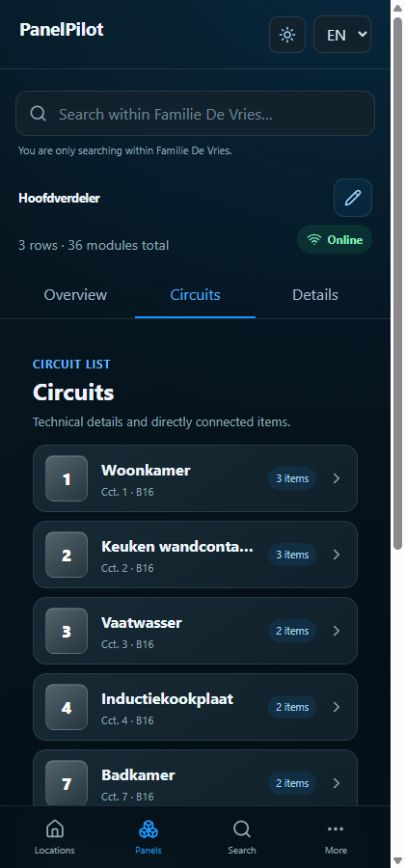
Circuits and devices
View circuits and edit technical details
A circuit brings technical information and connected devices or rooms together.
Watch the video
Name and check circuits
Transcript
- Open a panel and choose Circuits, or select its breaker in the locked layout.
- Select the circuit and check its name, number, type, status and technical details.
- Use the pencil to change available fields, for example name, phase, rated current, characteristic or associated RCD.
- Save and check the detail view. Add connected items to describe what the circuit supplies.
Step by step
Open a panel and choose Circuits, or select its breaker in the locked layout.
Select the circuit and check its name, number, type, status and technical details.
Use the pencil to change available fields, for example name, phase, rated current, characteristic or associated RCD.
Select an eligible component in the same panel for an RCD association. Leave unknown values empty where the form permits it.
Save and check the detail view. Add connected items to describe what the circuit supplies.
Good to know
- View-only access does not include an edit button. Ask the record administrator for appropriate access.
- Use reliable installation information for technical values; a populated field is not a measurement.