Panels and layouts
Edit the layout and rows
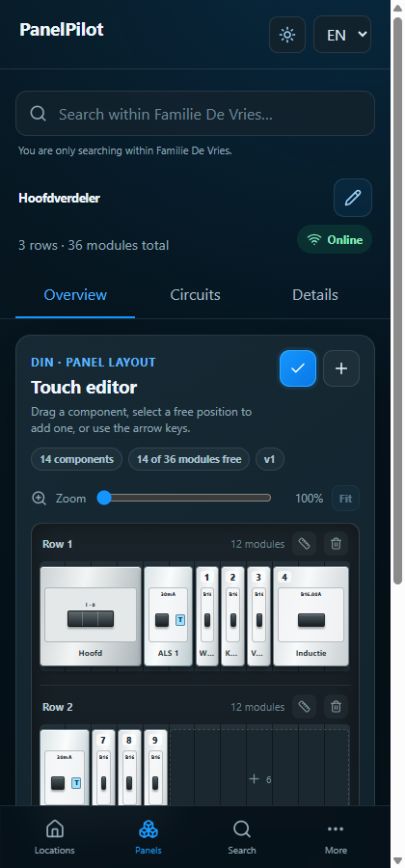
The layout starts locked so you can inspect components without moving them.
Watch the video
Set up panel rows
Transcript
- Open the panel and select the pencil inside its layout to enter editing mode.
- Use the row-size action to change capacity. Select a preset or enter between 1 and 72 modules.
- Add a row when more space is needed. Only remove or reduce a row when its occupied positions allow it.
- Wait for the save message, finish editing with the check mark and inspect the complete layout.
Step by step
Open the panel and select the pencil inside its layout to enter editing mode.
Use the row-size action to change capacity. Select a preset or enter between 1 and 72 modules.
Add a row when more space is needed. Only remove or reduce a row when its occupied positions allow it.
Select a free position to add a component or cover plate. Check width and available space.
Move a component using the available drag or keyboard controls. Check its destination; overlapping positions or placement outside the row are rejected.
Wait for the save message, finish editing with the check mark and inspect the complete layout.
Good to know
- You cannot shrink a row past its last occupied position. Deliberately move or remove those components first.
- Zoom helps on small screens. A save message may disappear while an offline change still awaits synchronisation; also check connection status.